
GNS WhatsApp Plugin is a simple yet effective WordPress plugin that allows you to add a floating WhatsApp icon to your website in just a few clicks — no coding required. Whether you’re running a business website, a blog, or an e-commerce store, this plugin makes it incredibly easy for your visitors to reach you directly via WhatsApp with a single tap.
*** If you are looking for a WhatsApp Marketing tool, kindly check BECA for group chat, bulk messaging, whatsapp campaign and many more.
What’s included:
- Installation
- Adding mobile number
- Positioning button
- Resizing the button
- Uninstall
Installation:
Getting started with GNS WhatsApp Plugin is quick and straightforward. Download the zipped plugin file from the repository and head over to your WordPress admin panel.
Navigate to the Plugins section and click “Add New”.

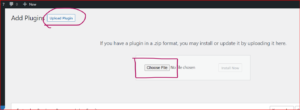
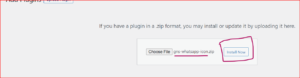
Instead of searching, select the “Upload Plugin” option at the top of the page. Choose the downloaded zip file from your system and click “Install Now” to begin the installation process.
Once the installation is complete, click the “Activate” button to enable the plugin on your website.
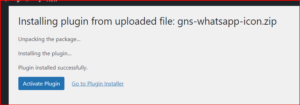
That’s it — your plugin is now installed and ready to be configured!
Adding mobile number:
Once the plugin is activated, you can easily link it to your WhatsApp number.
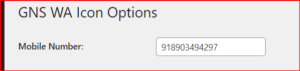
Navigate to the Settings menu in your WordPress dashboard and select “GNS WA Icon” from the list.
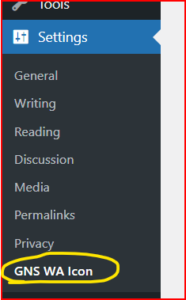
In the settings panel, you will find a text box where you can enter your mobile number. Please note that the country code is required (without the + sign) followed by your number, with no spaces or special characters. For example, if you are based in the UAE, your number should be entered as 971XXXXXXXXX. Once entered, save the settings and your WhatsApp button will be live on your website.
Positioning Button:
One of the key features of GNS WhatsApp Plugin is the flexibility it gives you in positioning the floating icon on your website. You can place the button wherever it feels most natural and visible to your visitors. The following position options are available:
- Top Left
- Top Right
- Bottom Left
- Bottom Right
- Middle Left
- Middle Right
Simply select your preferred position from the settings panel and save. The icon will instantly appear in the chosen location across all pages of your website.

Resizing the icon:
Not every website is the same, and we understand that the size of the WhatsApp button matters for a good user experience. GNS WhatsApp Plugin gives you three sizing options to choose from, so you can match the icon size to your website’s design and layout:
- Small — subtle and minimal, great for clean professional websites
- Medium — the recommended size for most websites, balanced and visible
- Large — bold and prominent, ideal for mobile-first or high-traffic sites
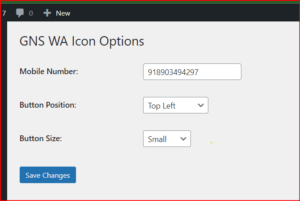
Select your preferred size from the settings and save your changes. The icon will update instantly without needing to refresh or reconfigure anything else.
Preview
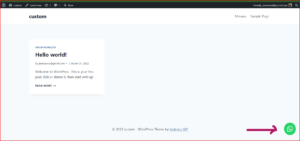
Once configured, the floating WhatsApp icon will appear on your website exactly as positioned and sized in your settings. Visitors can click the icon at any time to open a WhatsApp chat directly with your configured number — making it effortless for potential clients and customers to get in touch with you instantly.
Uninstall:
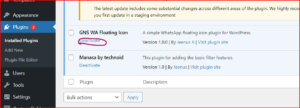
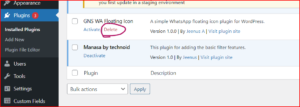
you can easily uninstall the plugin by just navigating to the Plugins section on admin panel and try to locate the plugin.
Once the plugin is located, first try to deactivate the plugin and the proceed with the uninstallation.
Looking for More?
If your business needs go beyond a simple WhatsApp button and you’re looking for a complete WhatsApp marketing solution, check out BECA — a powerful tool built for group chat management, bulk messaging, WhatsApp campaigns, and much more. Perfect for businesses looking to scale their WhatsApp communication strategy.